

Your user profile is where others can see your displayed account information, such as your username and profile picture! This is also where others can see your articles, worlds, manuscripts and other content that you wish to display.
How to access your user profile
To access your user profile you need to:
- Click on your circular avatar icon on the top right of your screen.
- Click on the View Profile option.
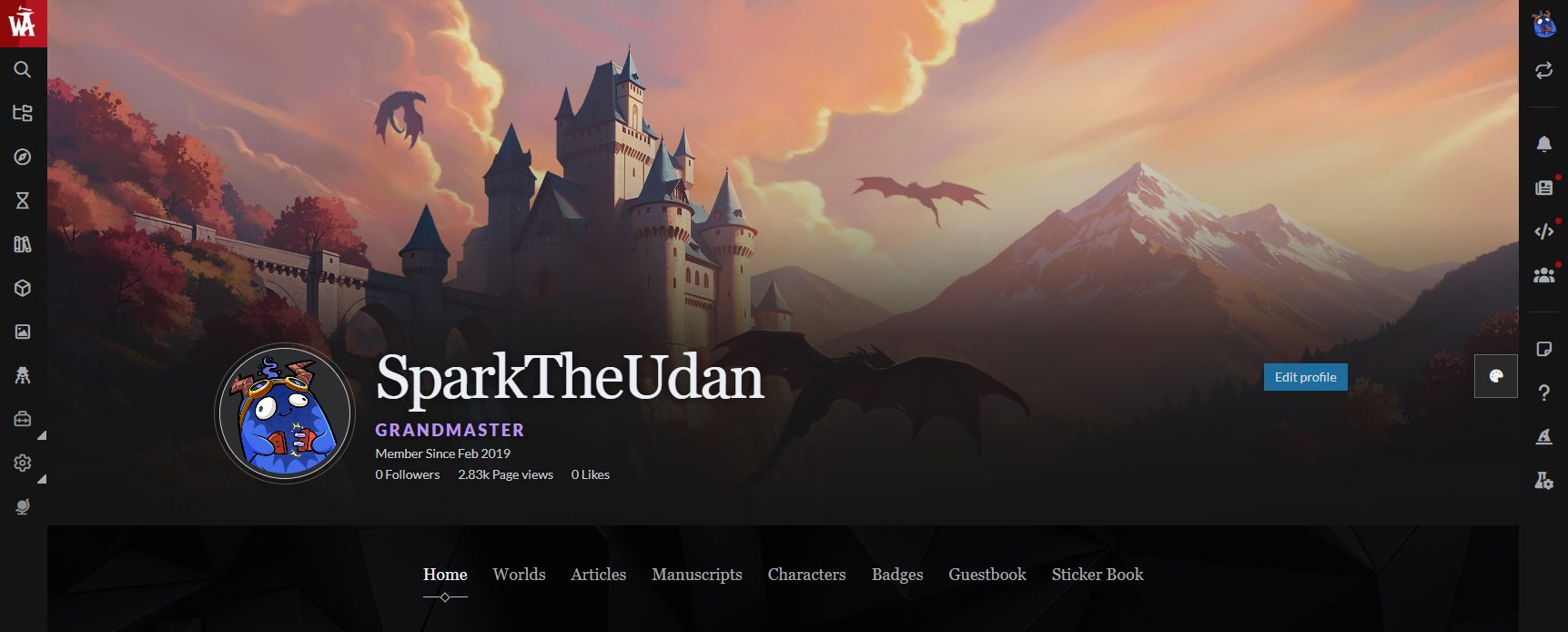
User profile page
On your profile page, you can see your profile picture on the left along with your guild tier, username, registration date, number of followers, the total amount of views you have on your pages as well as the total amount of likes.
If you're visiting someone else's profile, you can also find the "follow" button to follow their account!
Home
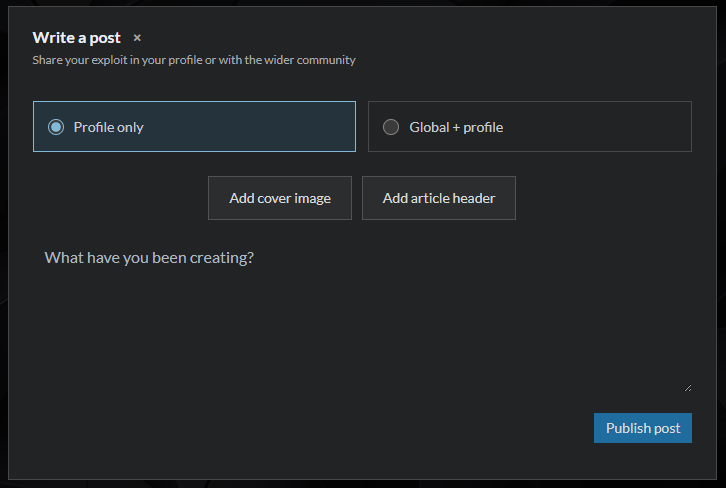
The Home tab shows your status updates and journal entries and your custom profile information. You can make new posts such as status updates and journal entries from here as well. Click on the "Write a post" button and choose whether you want to post only in your profile, or if you want to post in the global community stream
For more about global posts, check out:
Guide to global posts on World Anvil
Articles
Under this tab, others can see your most liked and most viewed articles. Your articles need to be public and published to appear here.
Worlds
Under this tab, others can see your owned worlds and the worlds that you are a co-author of. Your worlds need to be public to appear here.
Manuscripts
Under this tab, others can see your manuscripts. Your manuscripts need to be public and published to appear here.
Characters
Under this tab, others can see your characters. All your visible characters will appear here.
Badges
If you have any World Anvil Badges, they'll appear here. You can earn badges by taking part in events, challenges and leaving your feedback when new features are released!
Guestbook
Under this tab, others can leave comments for you, and you can also read their comments and comment back.
How to edit your profile
While in your profile page, simply click on the Edit profile button on the right to edit your user profile page.
Alternatively,
- Click on your circular avatar icon on the top right of your screen.
- Click on the Edit Profile option.
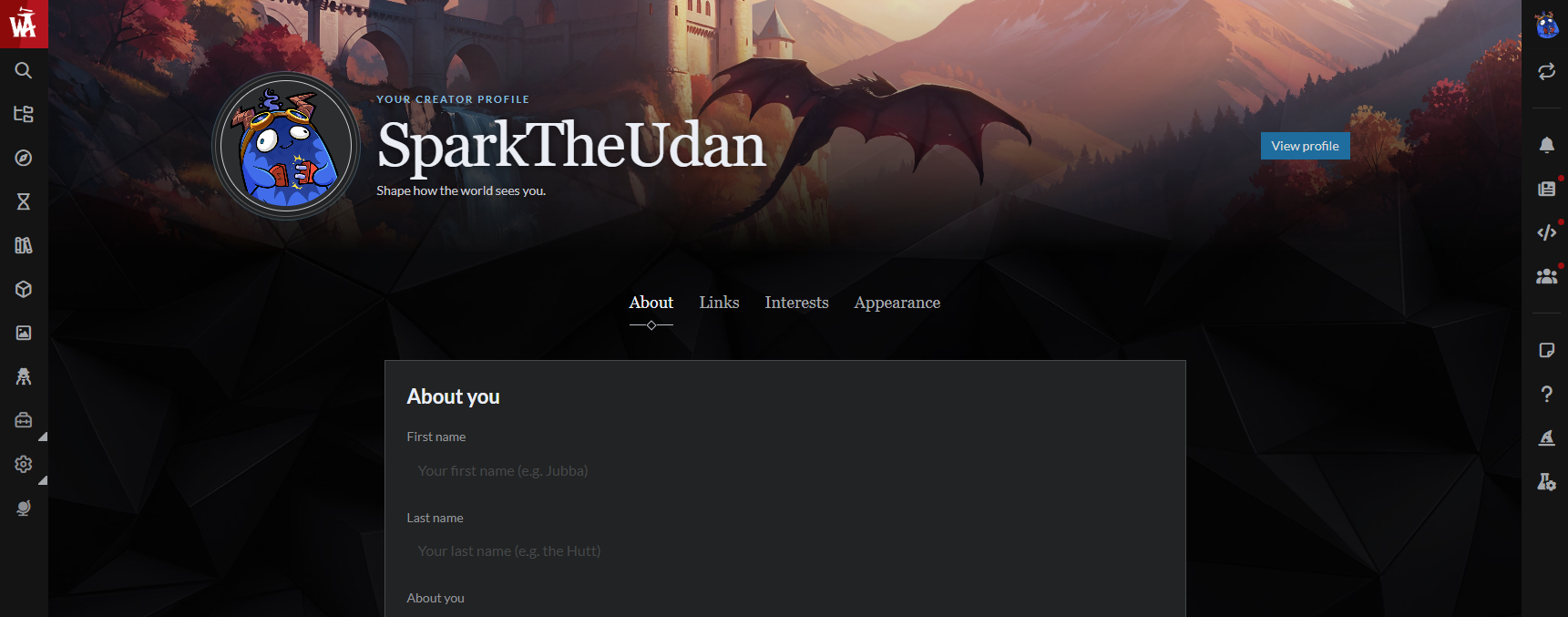
Use the various tabs to edit your profile and tell the world about you! Make sure to click the "save profile" button at the bottom when you're done.
- Community signature field: the community signature will appear in your comments on articles and on discussion boards. Changes to the signature do not update the signature in existing comments you have made!
- Master Custom profile content field: here you can customize the content on the top right of your profile.